Pevac Digital Signage

Turn Your TV into a Digital Sign with Roku

Pevac Digital Signage is a digital signage app for Roku players and Roku TVs. Play videos, photos and audio from USB or Google Drive, build playlists and schedule content using your Roku remote. Create displays for schools, offices, restaurants and retail spaces without a separate signage player.

Best Platform

Why Roku

Roku is one of the most affordable and reliable platforms for digital signage. Roku sticks and Roku smart TVs start at around $30, require no proprietary signage hardware, and are designed to run continuously. This makes them well-suited for unattended displays.

Hardware is available same-day at Walmart, Amazon, Target, Argos, Currys, Tesco, Very and most electronics retailers, and a failed device can be replaced locally. Roku devices also receive regular software updates and have a long track record of stable, always-on performance in commercial settings.

Digital Sign

What Is Digital Signage

Digital signage is an electronic display system such as an LED, LCD, or projection screen used to show dynamic multimedia content like videos, images, menus, or web pages instead of static printed posters.

The Roku platform provides TVs and media players that deliver content to your display. You provide any required mounting equipment.

Pevac Digital Signage lets you organize media, create playlists, and schedule what plays on your screens using your Roku remote.

The media you display—videos, images, or audio—is stored on a USB drive or loaded from Google Drive.

Digital signage is used in restaurants and cafes to display prices and daily specials, and on large displays to showcase branding at events or flagship stores. Outdoor installations use weatherproof displays in high-traffic areas.

From setup to scheduled playback

How It Works

Connect your media, organize your presentation and decide when it plays—all from your Roku remote. Explore each feature below to build a setup that suits your display.

Install & Set Up

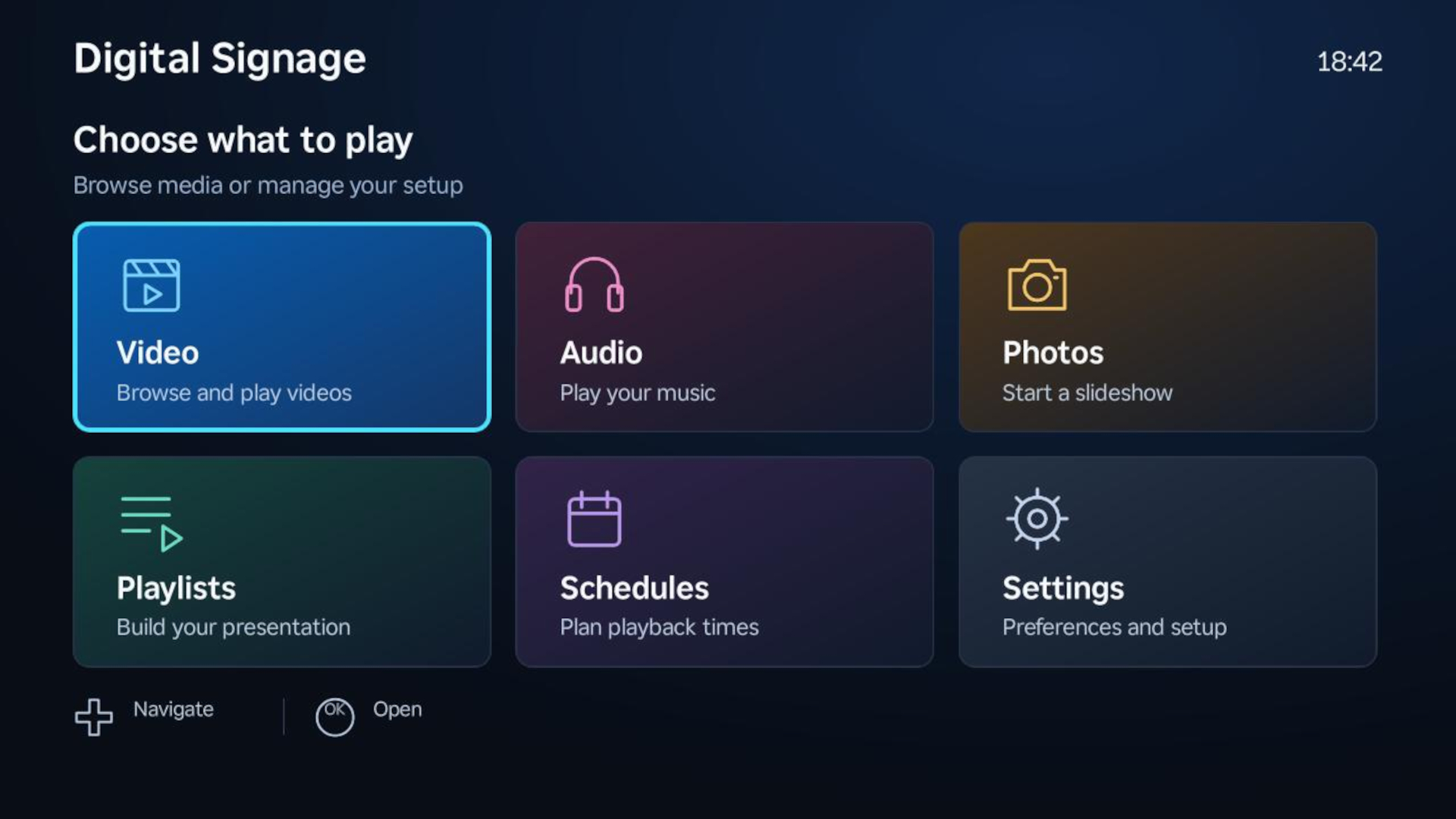
Pevac Digital Signage home screen with media, playlists, schedules and settings

Turn a compatible Roku player or Roku TV into a display for menus, announcements, promotions and other media. Pevac Digital Signage lets you browse content, build playlists and schedule playback using your Roku remote.

  1. Find Pevac Digital Signage in the Roku Channel Store, install it and open the app.
  2. Select Get started and follow the email-verification steps using your Roku account email.
  3. Choose an available subscription for the number of devices you need. Eligible plans offer a 30-day free trial through Roku Pay.
  4. Choose Video, Audio or Photos, then select your media source.

Your subscription and device allowance belong to your shared account. Connecting Google Drive is optional; you can use USB media without linking a Google account.

Connect USB or Google Drive

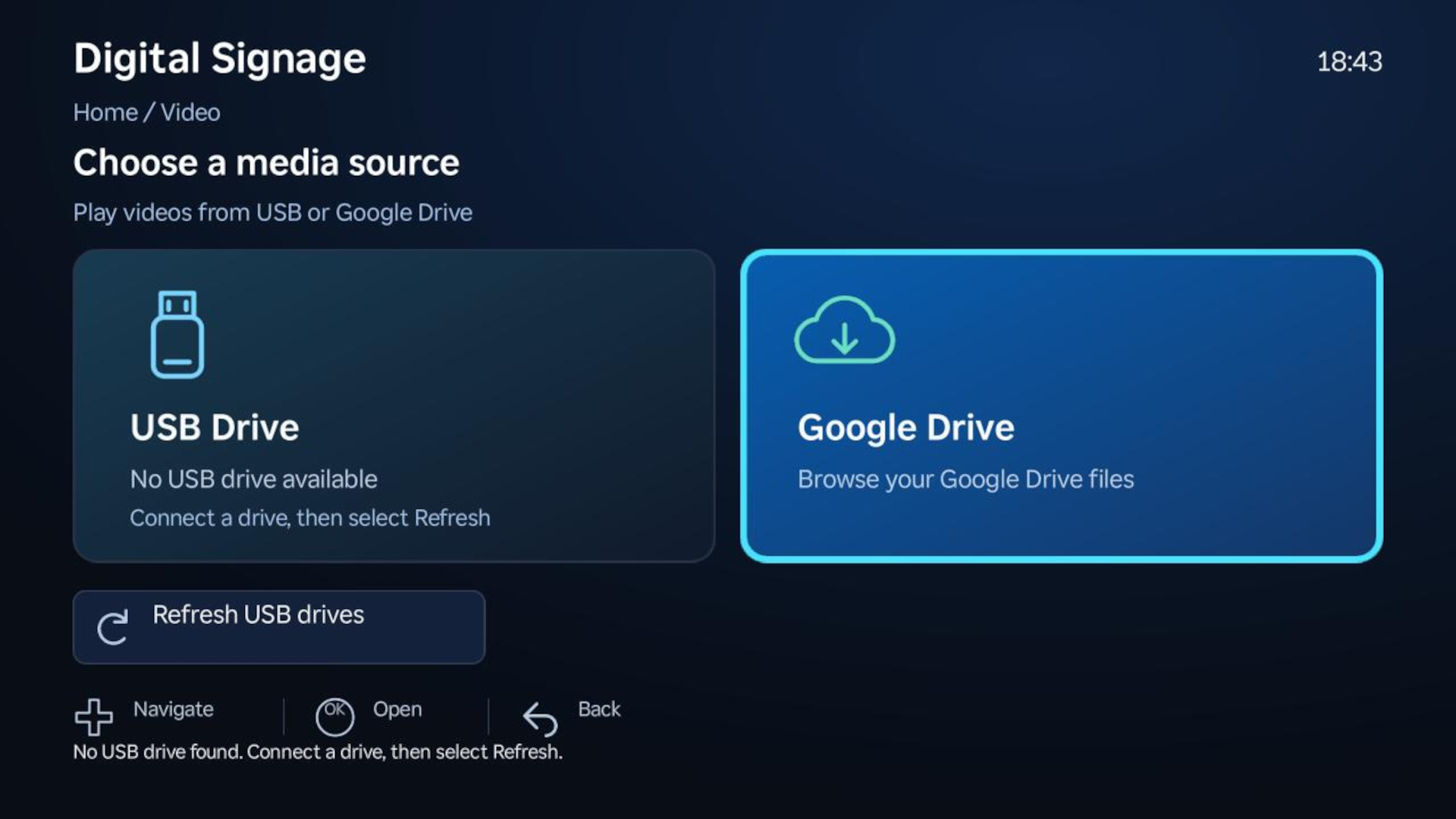
Media source selection for USB drives and Google Drive

USB: Copy your media to a USB drive and connect it to a Roku model with a supported USB media port. Choose the media type, select the drive and open a file or folder. If you connect the drive while the app is running, select Refresh. Supported file systems and video codecs depend on your Roku model.

Google Drive: Create a folder named PevacDigitalSignage in your Google Drive and upload your media. Select Google Drive in the app and follow the on-screen pairing instructions to authorize access. You can organize content into subfolders or place files directly in the PevacDigitalSignage folder.

The browser shows folders first, followed by supported files for the selected media type. Open a file to view its details, play it immediately or add it to a playlist. Google Drive playback requires an internet connection.

Create & Manage Playlists

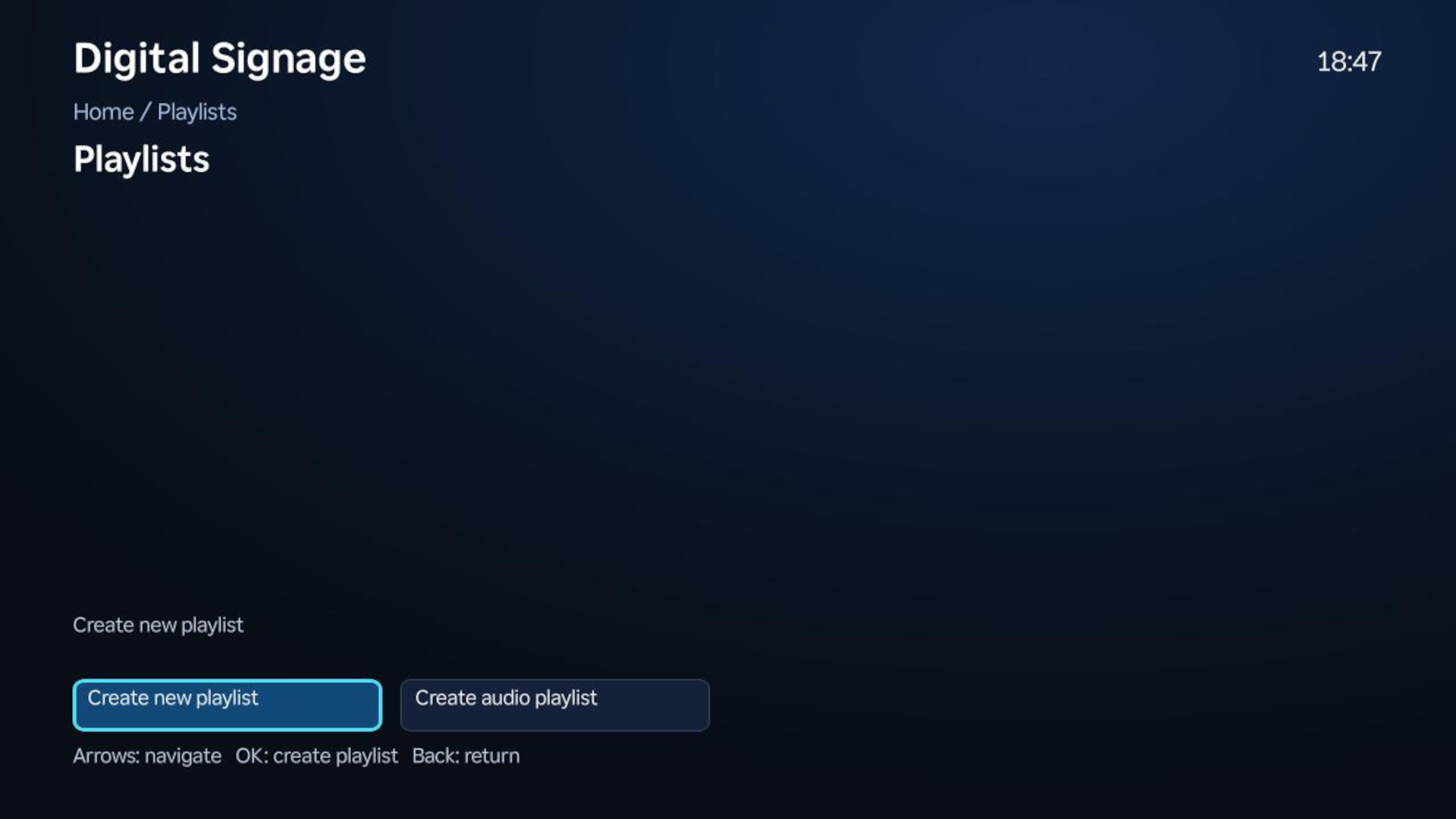
Saved playlists and their media items in Pevac Digital Signage

Build a visual playlist from videos and images, or create a separate audio playlist for music and announcements. A playlist can reference media from both USB and Google Drive, so you can combine sources in one presentation.

Open a file, choose Add to playlist, then select an existing playlist or create a named one. In Playlists, select an item to begin playback from that point; the sequence continues in order and loops.

Press * to open playlist options. Reorder or remove items, rename playlists, adjust image durations, choose Fit or Fill for individual images, and mute individual videos. Playlist settings are saved on the Roku; the media stays on its original source.

Add Background Music

Create an audio playlist, then open a visual playlist and press * → Background music to attach it. Music plays while images are displayed, pauses for video playback and resumes when the presentation returns to images. You can also play audio playlists on their own.

Schedule Your Content

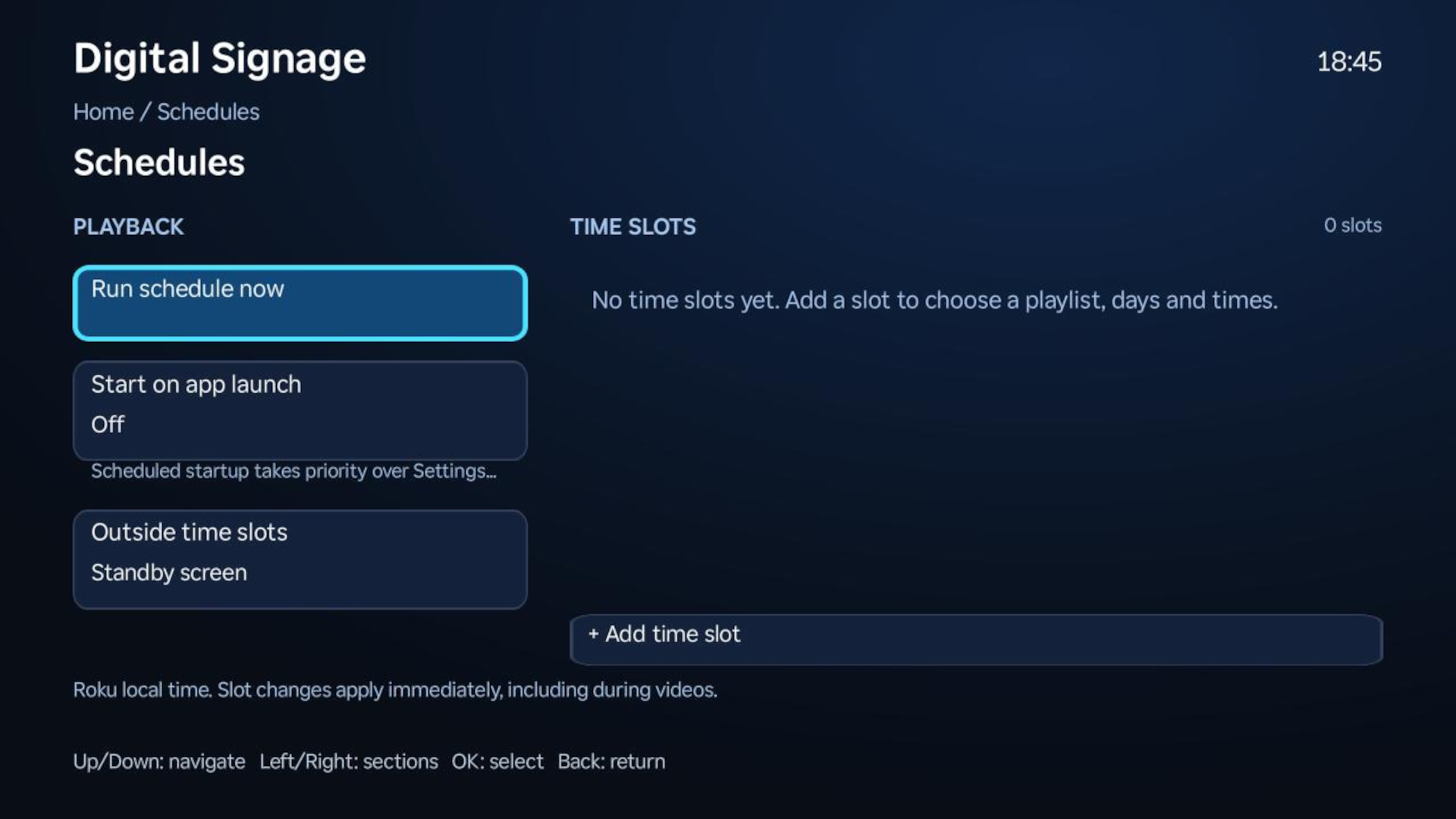
Weekly schedule overview with playback controls and time slots

Automatically switch playlists throughout the week—for example, a morning menu, afternoon promotions and an evening presentation. Open Schedules to assign playlists to recurring days and times, using your Roku’s local time zone.

Select Run schedule now to start the schedule, or enable Start on app launch to begin it whenever you open Pevac Digital Signage. Under Outside time slots, choose a fallback playlist or the standby screen.

Scheduling runs while the app is open. It does not turn the TV on or launch the app when Roku powers up. Press Back during scheduled playback to stop the schedule and return to the app.

Create a Time Slot

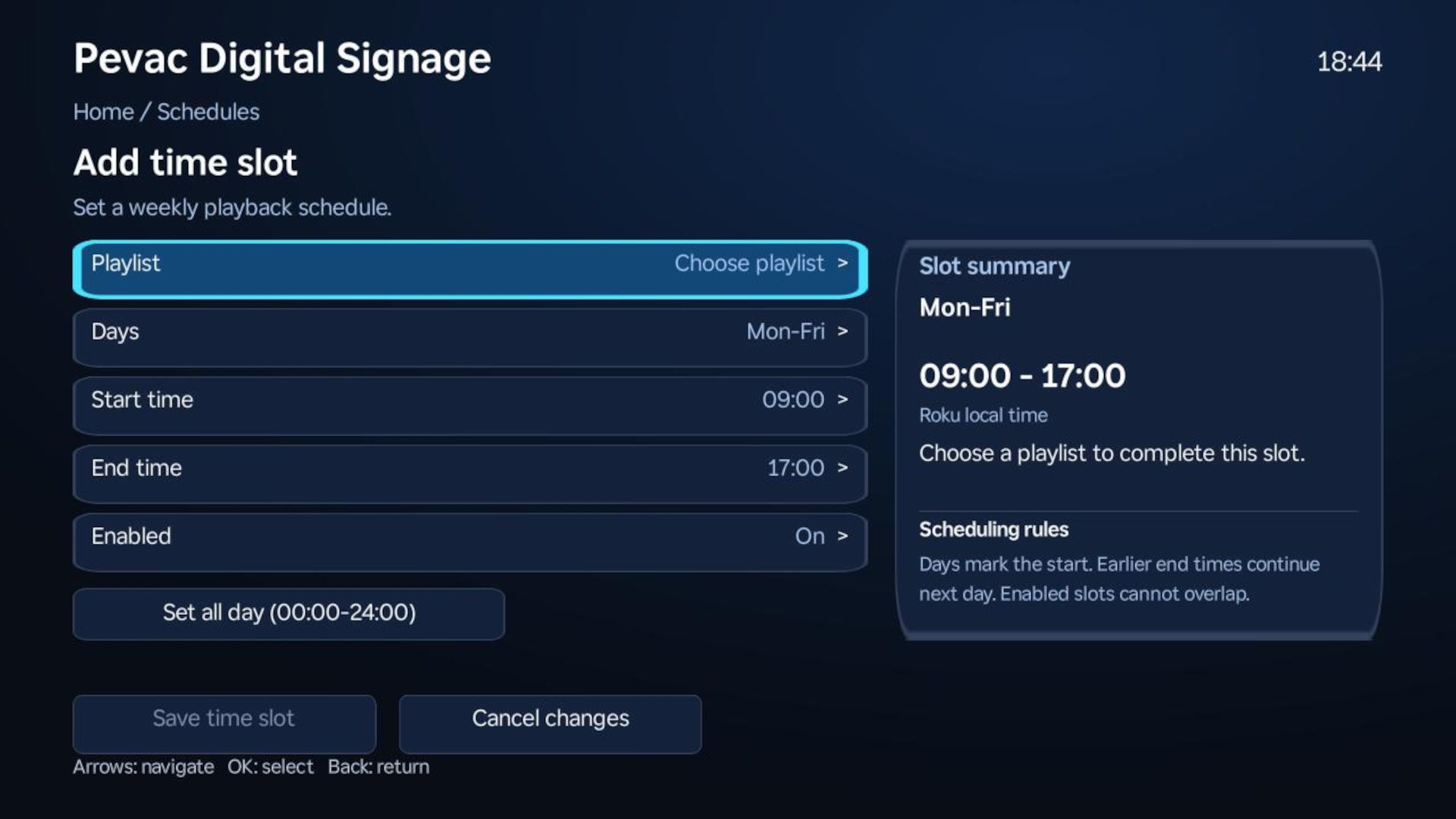
Time-slot editor with playlist, days, start time and end time

Select Add time slot, choose a visual or audio playlist, and set its days, start time and end time. Use Set all day for a full-day presentation, then select Save time slot to apply it.

Slots can run past midnight. Choose the day the slot starts; playback continues into the following day until the end time. Enabled slots cannot overlap, helping you keep a clear playback schedule.

Set Start & End Times

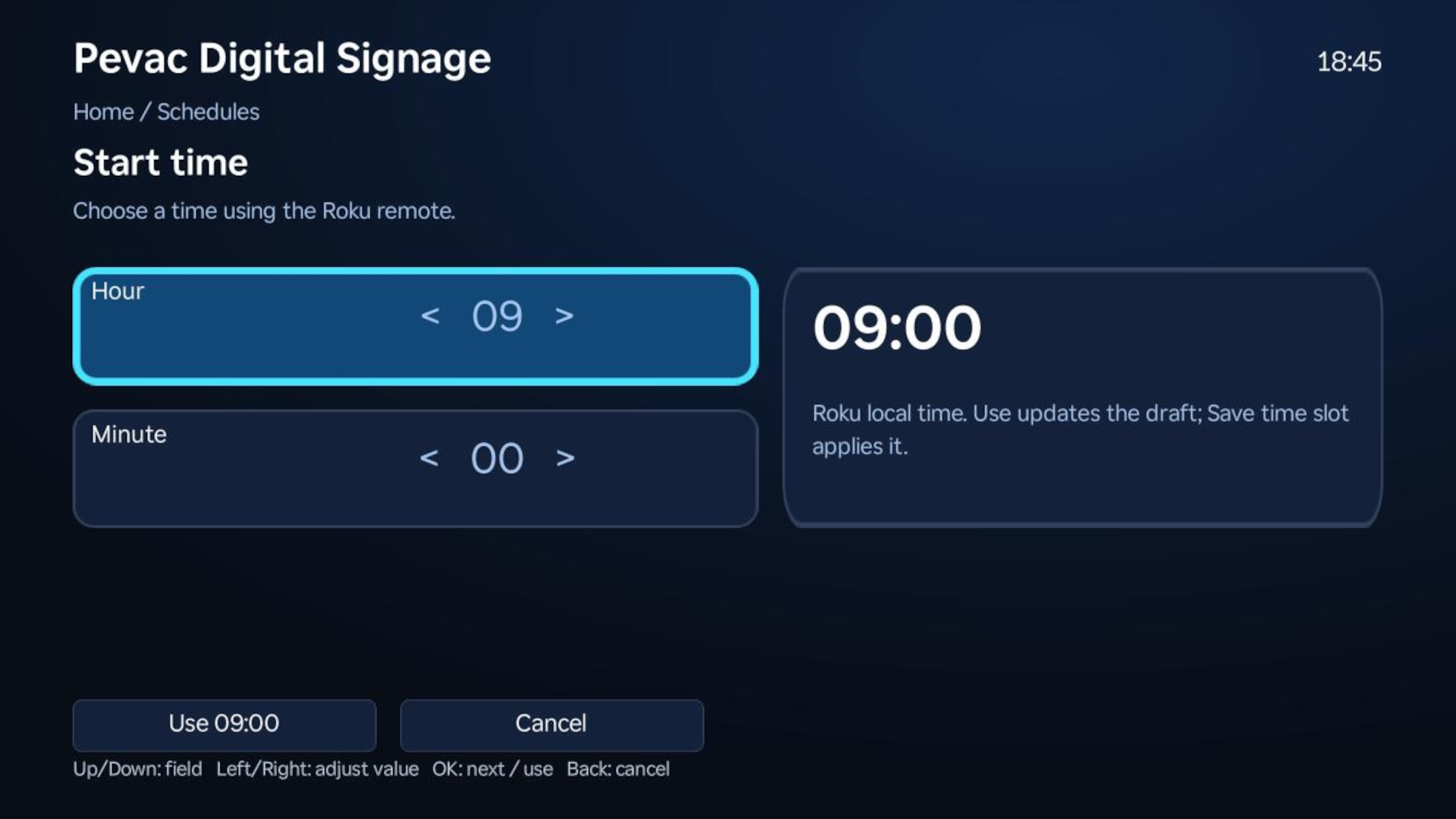
Time picker for a schedule slot

Use Up/Down to move between the hour, minute and action buttons. Use Left/Right to adjust the selected value, then confirm the time shown on screen. Select Cancel or press Back to leave without applying the change. Save the time slot after editing its times.

Choose Recurring Days

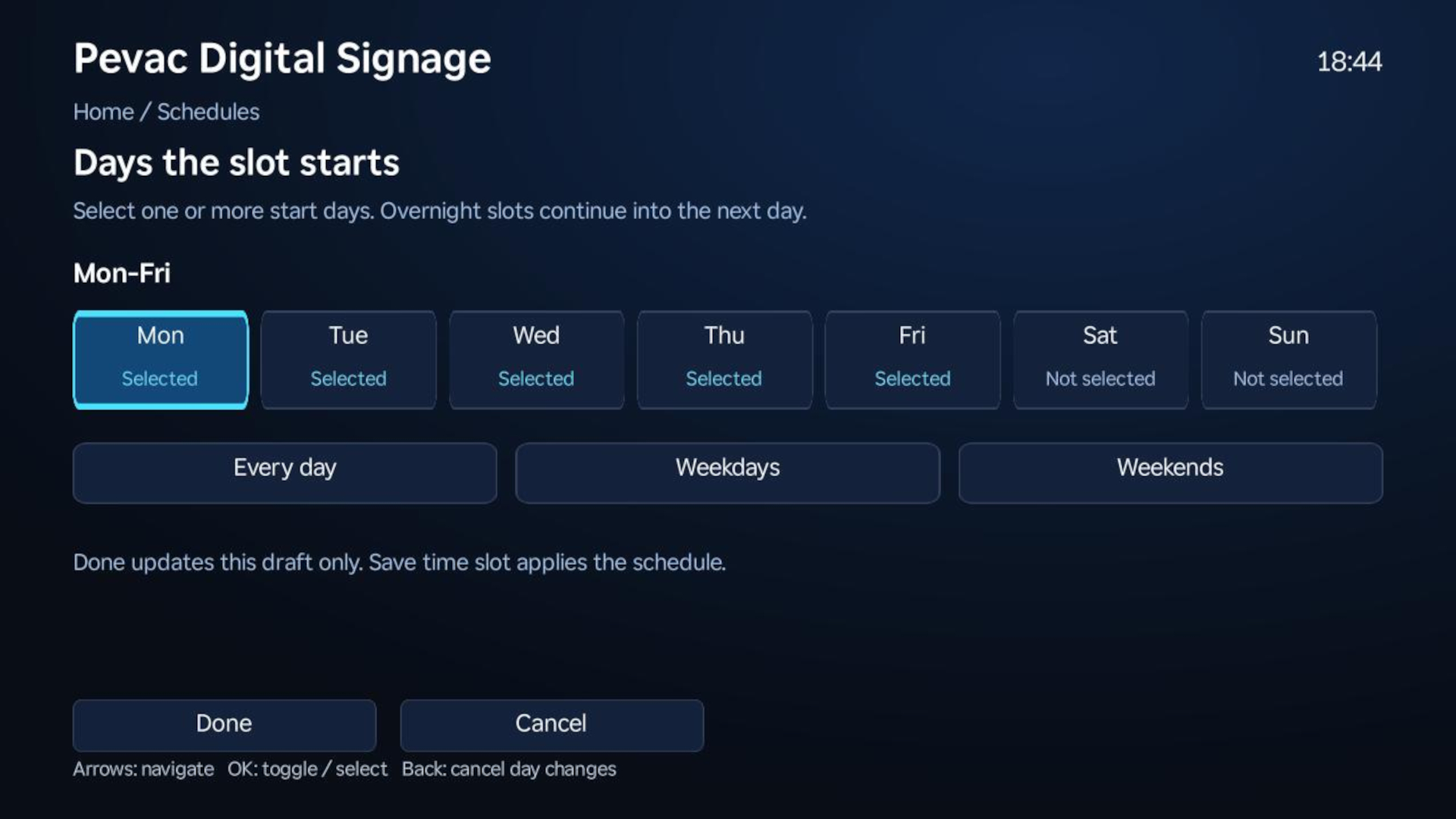
Weekday picker with individual days and recurring-day presets

Select days individually with OK, or use Every day, Weekdays or Weekends. Choose Done to apply the selection to your draft, then save the time slot. These weekly patterns are ideal for regular opening hours, school timetables and recurring announcements.

Control Image Display

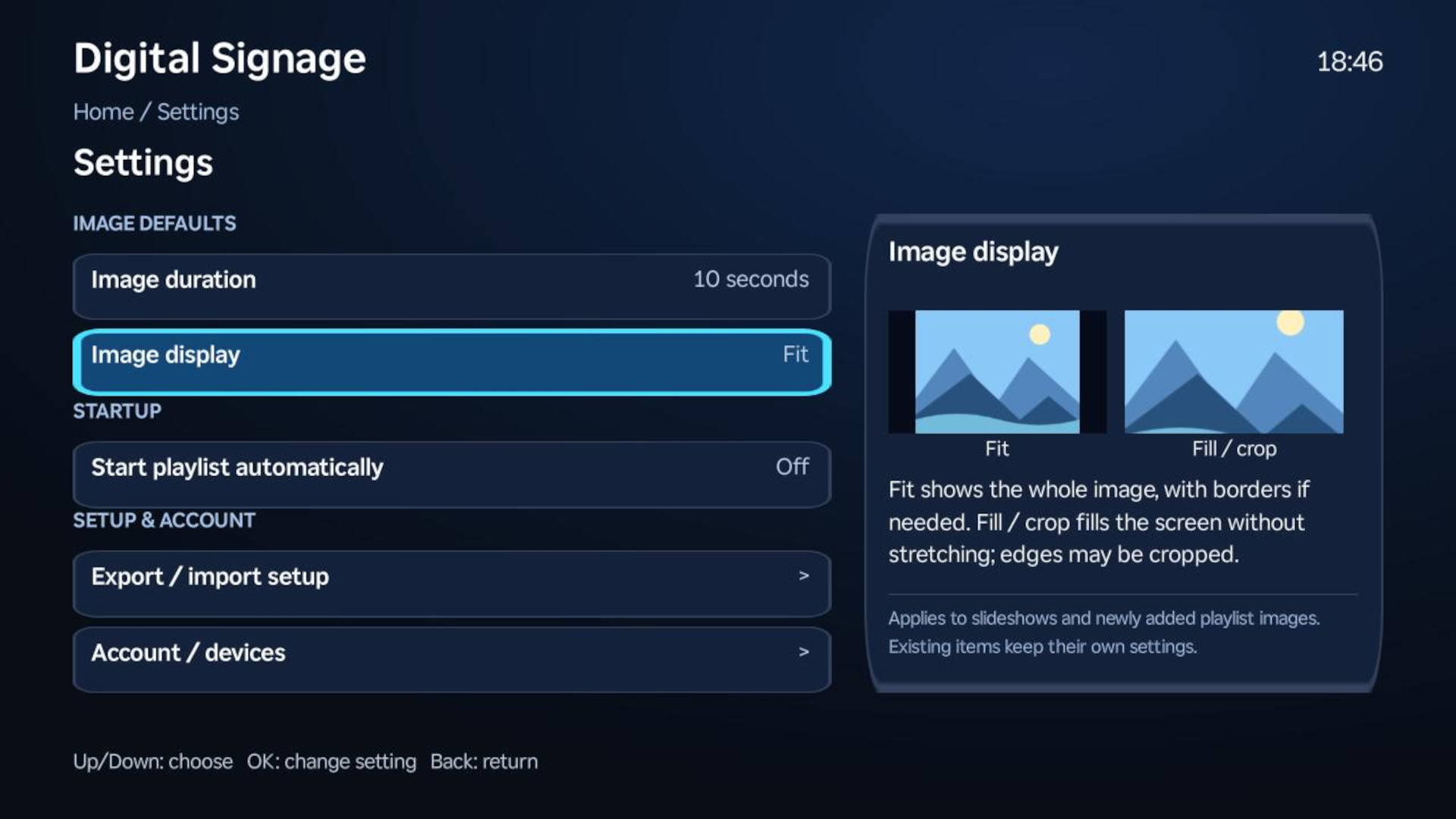
App settings for image display, startup, setup transfer and account access

In Settings, choose the default image duration and display mode. Fit shows the complete image and may leave borders. Fill fills the screen by cropping the edges without stretching the image.

While viewing photos from the browser, press * to switch between Fit and Fill for that viewing session. Your saved defaults remain unchanged. Existing playlist images retain their individual duration and display settings.

Start Playback Automatically

For a repeating presentation without a timetable, open Settings → Start playlist automatically and choose a visual or audio playlist. The next time the app opens, playback begins after a short countdown; press Back to cancel and browse instead.

If Start on app launch is enabled for a schedule, the schedule takes priority over the startup playlist.

Export & Import Your Setup

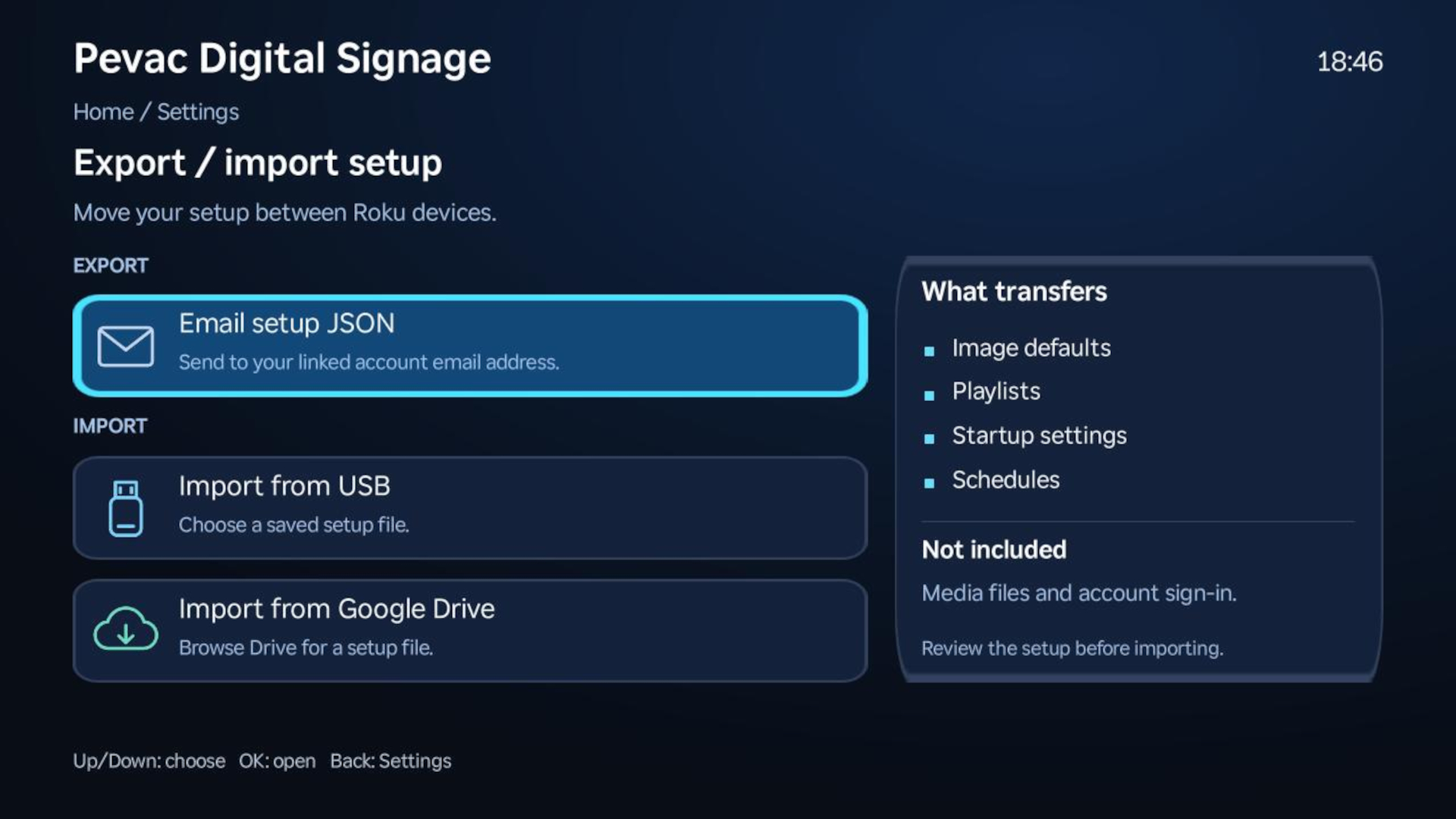
Setup transfer screen with email export and USB or Google Drive import

Reuse a prepared setup on another Roku through Settings → Export / import setup. Export sends a setup file to your account email, including playlists, schedules, image preferences and startup choices.

Save the attachment to USB or upload it to Google Drive, then import it on the destination Roku. Review the preview before confirming: importing replaces that device’s current setup rather than merging it.

Media files, account sign-ins and subscriptions are not transferred. Make the referenced USB files available or connect the destination Roku to the Google Drive account that can access them. Each device keeps its own setup; later edits are not automatically pushed to other displays.

Manage Your Account & Devices

Open Settings → Account / devices to view registered devices and your shared device allowance. You can refresh account details or sign out the current Roku to release its device slot without signing out your other devices.

Choose Relink Google account to reconnect Google Drive while keeping your Pevac sign-in and subscription. The Google connection is shared across the account. After pairing, restart the app on your other Rokus so they pick up the updated connection. If you link a different Google account, check that your playlists still reference accessible files.

Choose Your Subscription

In Settings → Subscription, review the available device tiers, monthly or annual billing options, and prices supplied by Roku. Complete purchases through the native Roku Pay checkout. The available options may vary by tier.

Your plan determines how many Roku devices can be registered to the shared account. When changing plans, review the device allowance and the effective date shown; a scheduled downgrade does not reduce your allowance before it takes effect.

Use the App in Your Language

Pevac Digital Signage follows your Roku’s system language, with support for US and UK English, German, Canadian French, Spanish for Spain and Mexico, and Brazilian Portuguese. Change the language in Roku settings and reopen the app to use it. Your file and playlist names remain as you entered them.

Roku Devices

Supported Devices

  • Roku Express
  • Roku Express 4K+
  • Roku Streaming Stick 4K
  • Roku Streaming Stick 4K+
  • Roku Ultra LT
  • Roku Ultra
  • Roku Streambar
  • Roku Streambar Pro
  • Roku Select Series TV
  • Roku Plus Series TV
  • Roku Pro Series TV
  • TCL Roku TV
  • Hisense Roku TV
  • Insignia Roku TV
  • Sharp Roku TV
  • Philips Roku TV
  • Element Roku TV
  • Westinghouse Roku TV
  • Onn. Roku TV
  • RCA Roku TV
  • JVC Roku TV

Roku Channel Store

Subscriptions

Subscriptions are managed through the Roku Channel Store. Upgrade and downgrade your subscription plan at any time. Need more devices? Please contact us to arrange custom packages.

1 device 30-day free trial $4.99/month
2 devices 30-day free trial $9.99/month
5 devices 30-day free trial $21.99/month
10 devices 30-day free trial $39.99/month
1 device 30-day free trial $49.99/year
2 devices 30-day free trial $89.99/year
5 devices 30-day free trial $219.99/year
10 devices 30-day free trial $399.99/year

Before You Get Started

Frequently Asked Questions

Do I need a Google account to use Pevac Digital Signage?

No. Google Drive is optional. You can play supported media from a USB drive on a Roku device with a compatible USB port. Using Google Drive requires linking your Google account and an internet connection. Both sources require app sign-in and a valid subscription. See Connect USB or Google Drive.

Where do I put my Google Drive files?

Put supported videos, photos and audio in the PevacDigitalSignage folder in your linked Google Drive. Files can be at the root of that folder or in subfolders. The app lists folders first, followed by files for the selected media type.

Can I schedule content and start playback automatically?

Yes. Create weekly schedules with selected days and time slots, using your Roku's local time. You can also choose a startup playlist that begins after a short countdown when you open the app. These features do not turn on the TV or launch the app from the Roku home screen. See Schedules and Startup Playback.

Can I use the same setup on another Roku?

Yes. Export your playlists, schedules and supported settings, then import that setup on another Roku. This is a manual transfer, not live remote publishing. Media files, sign-ins and subscriptions are not included; the receiving device must have access to the required media. See Import & Export.

How many displays can I use, and is there a free trial?

Your subscription determines the number of Roku devices registered to your shared account. Eligible plans offer a 30-day free trial through Roku Pay. Review the available device tiers, billing options and current terms in the app before checkout. See Choose Your Subscription.

Can I display portrait photos and play background music?

Yes. Fit shows the whole photo without stretching; Fill crops it to cover the screen. You can also play a background audio playlist during photos. Background music pauses for videos and resumes when photos return. See Display Settings and Background Music.

Retail & Commercial
Digital Menu Boards
Corporate Communications
Schools & Colleges
Healthcare Industry
Transportation
Banking and Finance
Entertainment Industry
Accommodation

Roku Channel Store

Updates

  • Published to the store - Version 1.0
  • Added new features - Playlists, schedules, export/import, and USB/Google Drive support
  • CASA Tier 3 Certified - Passed in June 2026.